Season setup and schedules
Create a season once, connect it to DaySmart, and stop re-typing your schedule every time the league moves a game.
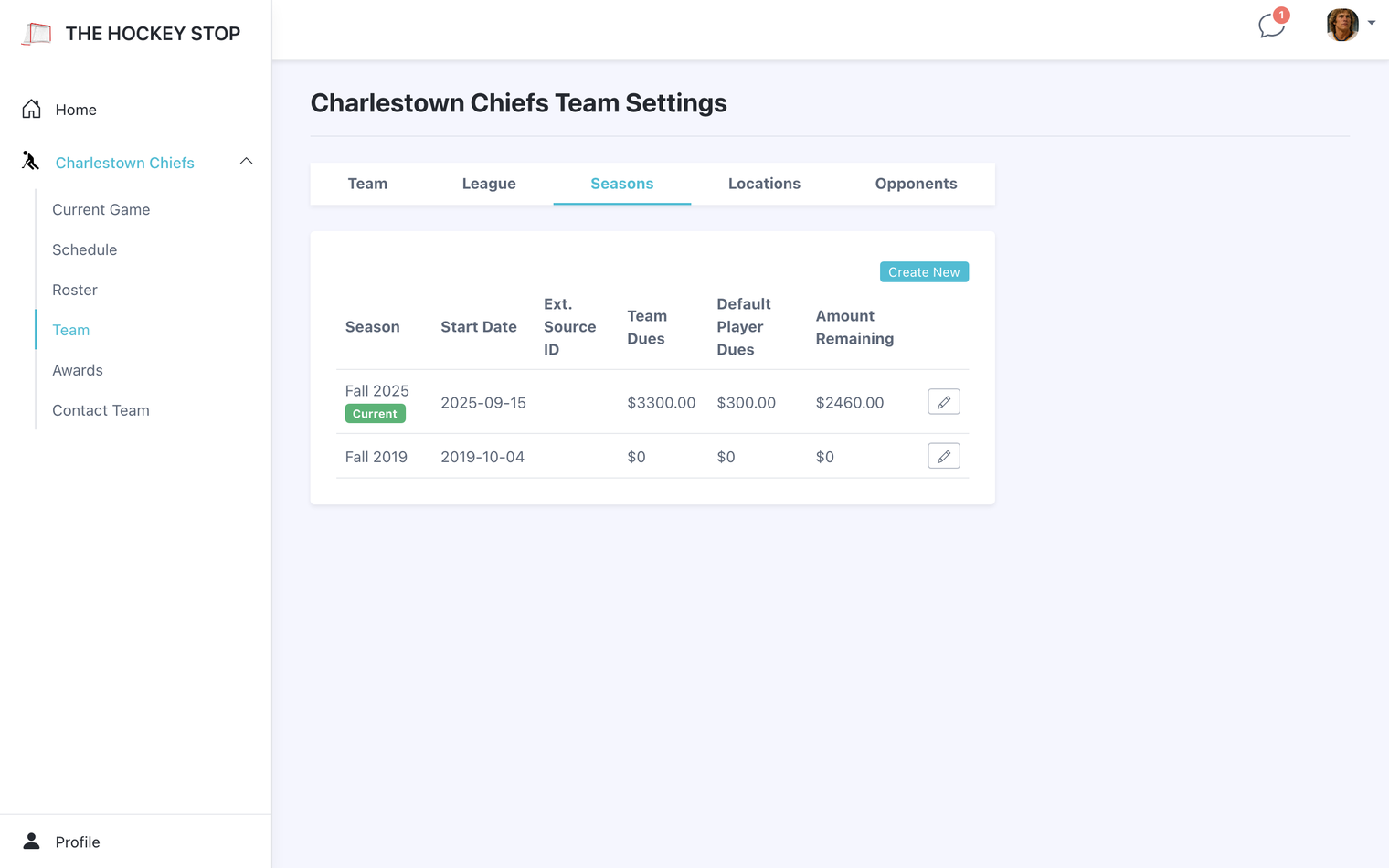
Creating a season
A season holds your roster, your schedule, and your dues for one stretch of play. Rolling into a new season keeps last season's history intact instead of overwriting it.
- Open Team → Seasons from the navigation menu.
- Choose Create New.
- Give it a name and a start date.
- Set the team's total dues and the default amount per player — you can adjust individual players later.
- Check set as current season so the app knows which one to show.
Connecting your DaySmart schedule
If your league runs on DaySmart, you never need to enter a game by hand. On the season screen, pick DaySmart as the provider and paste in your team's DaySmart ID. The Test link next to the field opens the league page for that ID so you can confirm you have the right team before you save.
Your schedule imports itself
The moment you save a DaySmart team ID, we go and fetch your schedule — you do not have to wait or press anything. After that it re-checks twice a day, at 8:00 AM and 8:00 PM, picking up new games, time and rink changes, and final scores as the league posts them.
Accepting changes automatically
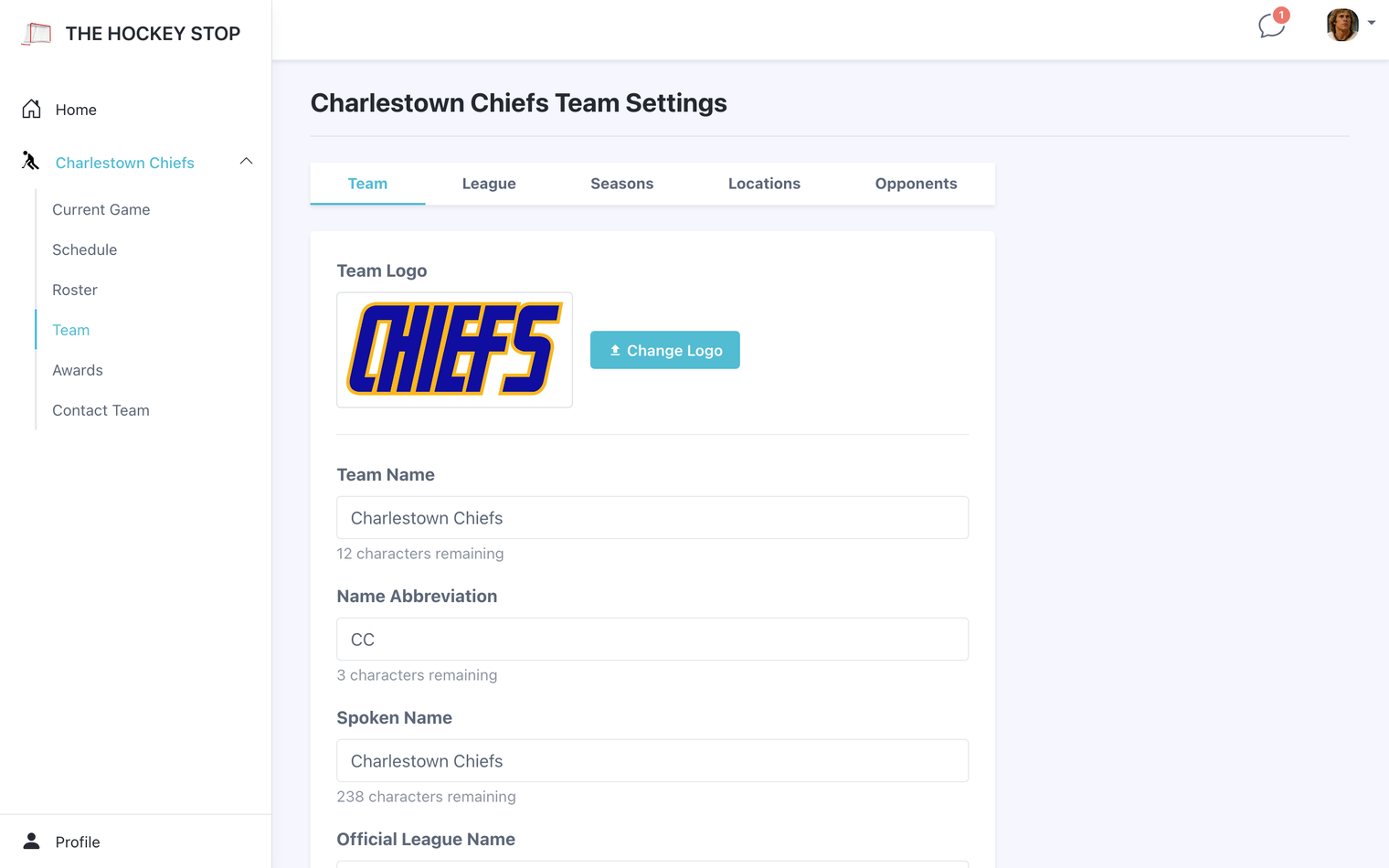
By default, a schedule change found during an import waits for an admin to approve it. If your league reschedules often and you would rather not review each one, turn on Auto-Accept Schedule Changes in Team → Team. Changes then apply straight to your calendar, and your players see the new time without anyone doing anything.
Subscribe to the schedule
Players can subscribe to the team schedule from their own calendar — Apple Calendar, Google Calendar, Outlook, anything that reads a calendar feed. It is a live subscription, not a one-time import, so when the league moves a game the change follows into their calendar without anyone re-downloading anything. Single games can also be saved individually.
This is the quiet fix for "I didn't know we had a game." It puts your schedule in the calendar people already look at.
League standings
If your league publishes standings and your season is connected to it, a Standings page appears in the navigation showing where you sit — pulled in for you, so nobody has to go hunting on the league website mid-season.